1. Administration Portal
The Admin Portal is accessible to users with the admin role assigned by the OIDC provider and subsequently provided to C-PAT via the user’s token. Users whose token contains the admin role will automatically be presented with an “Admin Portal” button in the side menu bar. The Admin Portal provides a way to manage users, collections, integrations, and fine-tune options that best align with particular organizational policies and operations.
2. User Management
The User Management section allows administrators to view, manage, and modify user accounts within C-PAT.
Note
By default, when a user first logs into C-PAT, they are assigned a PENDING account status and will not be able to access the application until an administrator approves their account. This step is implemented to ensure that only authorized users have access to the application and administrators have the ability and oversight to dictate more precise permissions and access.
To approve a user account, an administrator must navigate to the User Management section, select the user account from the dropdown at the bottom of the User Table, and change the Account Status to ACTIVE. Once approved, the user will be able to access the application and navigate to any collections for which they have been assigned permissions.
2.1. Pre-Onboarding a User
Administrators can pre-register (onboard) a user account before that user has ever logged in. This allows team assignments, collection permissions, and account status to be configured in advance so that the user is fully provisioned the moment they first authenticate, eliminating the usual back-and-forth of waiting for a first login before account setup can begin.
To pre-onboard a user:
In the User Management section, click the Onboard User button in the toolbar above the User Table.
Enter the user’s Username. This is the only required field.
Optionally enter the First Name, Last Name, and Email, and select the desired Account Status (defaults to
PENDING).Click Onboard. The new account opens immediately for editing, where the administrator can assign teams and collection permissions just as they would for any existing user.
Warning
The Username must exactly match the username claim that the OIDC provider will include in the token (the claim configured as the C-PAT username claim, e.g. preferred_username). The value is case-sensitive and limited to 100 characters. If the entered username does not match the token claim, the user’s first login will create a separate, unconfigured account rather than recognizing the pre-onboarded one.
Note
When a pre-onboarded user logs in for the first time, any identity fields left blank during onboarding (first name, last name, email) are automatically populated from the token. Values entered by the administrator during onboarding are preserved and take precedence over the token.
Assuming a correct C-PAT and OIDC configuration, user data should be automatically populated from the OIDC provider. If the user data is not automatically populated, the user data can be manually entered by an administrator. Accurate and complete user data is important to the flow of the C-PAT application, particularly when it comes to exporting into the eMASS excel format. User first name, last name, email, phone number, and office/organization are all pre-populated into a C-PAT export when available.
2.2. C-PAT Collection Privileges
Privilege |
Allows |
|---|---|
Viewer |
The Viewer role is most commonly attributed to readonly access. Users who have been granted the Viewer role for a collection can view the collection and its associated POAMs, Assets, Labels, etc. Users with the Viewer role however, cannot make any changes or add new items. |
Submitter |
The Submitter role is the recommended role for users who should not be restricted to readonly access and who do not explicitly need POAM approval access for the collection. Users with Submitter access will have access to add and modify data for POAMs, Assets, Labels, etc. |
Approver |
The Approver role is the recommended role for users who need to approve POAMs for the collection. Users with the Approver role will have the same access as that of the Submitter role, in addition to access to issue final approval or rejection for CAT II and CAT III POAMs. In the case of CAT I POAMs, an Approver can (and should) review and mark the POAM as approved, but the final approval must be issued by a CAT I Approver. The same rule applies to extension requests: an Approver can approve or reject extension requests for CAT II and CAT III POAMs, but extension requests for CAT I POAMs can only be approved by a CAT I Approver. |
CAT I Approver |
The CAT I Approver role provides the highest level of access to a collection. Users with the CAT I Approver role will have the same access as that of the Approver role, in addition to the ability to issue final approval for CAT I POAMs. CAT I Approvers are the only users who can issue final approval for CAT I POAMs or approve their extension requests. |
A user’s permission to a collection can come from more than one source: it can be granted directly to the user, granted through one or more of the user’s team assignments, or both at once. The user’s effective access level for a collection is always the highest level any of its sources grants.
POAM status changes are also bounded by the effective access level, and the API enforces these limits in addition to the client: Submitter access is sufficient to set a POAM to Draft, Submitted, Closed, or Expired; any other status change requires Approver access, and setting a POAM to Approved requires an Approver - or a CAT I Approver when the POAM is CAT I.
2.3. Team Assignments
The Team Assignments tab within a user’s account lists each team the user belongs to along with the access level the user holds on that team. Assigning a user to a team automatically grants the user a permission to every collection the team covers at the selected access level, without the need to assign each collection individually. Raising or lowering the access level on an existing assignment adjusts the permissions the team grants accordingly.
Removing a team assignment opens a confirmation dialog that previews exactly how the removal would affect the user’s collection permissions before anything is changed. The preview separates the affected collections into three groups:
Access would be removed entirely: Permissions that only this team justifies.
Access would be lowered: Permissions where another source still justifies access, but at a lower level.
Unaffected: Permissions still fully justified by another team or by a direct grant.
The dialog then offers two ways to proceed:
Remove but keep access: Removes the team assignment and converts only the access that would otherwise be lost into direct grants, listed as
Directon the Collection Permissions tab. Anything another team or an existing direct grant already justifies is left alone, so nothing new is recorded for the collections listed as unaffected.Remove and revoke: Removes the team assignment and applies the previewed removals and downgrades.
2.4. Restoring Skipped Collections
When collection coverage is added to a team, the administrator performing that action may choose to skip granting the new collection to particular members (see Adding Collection Coverage). Skipped collections are remembered per user — saving the user’s team assignment again will not grant them. When a user has skipped collections for a team, a restore icon appears on that team’s row in the Team Assignments tab. Clicking it opens a dialog listing the skipped collections; checking one or more and clicking Restore selected grants them at the user’s access level on that team.
Note
A skipped collection remains skipped for the user until it is restored here. Three other actions also clear it: removing and re-adding the team’s coverage of that collection, removing and re-adding the user’s assignment to the team, or deleting the team.
2.5. Collection Permissions
The Collection Permissions tab lists every collection the user can access and the effective access level held for each. The Source column shows where each permission comes from: a Direct tag indicates access an administrator granted to this user on its own, and a tag bearing a team name indicates that team’s coverage grants it. Both can apply at once, in which case the permission reflects the highest level among them.
Adding or editing a permission on this tab creates or updates a direct grant for the user. Deleting a permission removes only the direct grant — if the collection is also granted by one or more of the user’s teams, the user keeps the level the team coverage provides, and C-PAT will indicate which teams still grant it. To take that access away, change the team assignment or the team’s collection coverage.
3. Collection Management
Collection Management provides C-PAT administrators with the ability to manually create new collections, import collections from STIG Manager or Tenable.sc, modify existing collections, and export the POAMs contained within one or more collections into the eMASS excel format. Each collection also has the ability to enable or disable manual POAM creation.
The toolbar above the collection table contains three actions:
Bulk Import (cloud download icon): Opens the Bulk Import dialog to import one or more collections from STIG Manager or Tenable.sc in a single operation.
Export Multiple Collections (download icon): Opens the export dialog to combine POAMs from one or more collections into a single eMASS excel file.
Add Collection (plus icon): Opens the Add Collection dialog to manually create a collection or to import a single collection from STIG Manager or Tenable.sc.
Each row in the collection table has three actions:
Edit (pencil icon): Opens the collection for modification.
Sync Teams (sync icon): Re-runs the asset-to-team mapping defined under Asset Delta for every POAM in the collection. See Sync Teams below.
Delete (trash icon): Deletes the collection after confirmation.
Note
While the Collection Name is the only required field for a collection, it is strongly recommended that all Collection fields are entered to ensure proper data flow within C-PAT.
3.1. Sync Teams
When a POAM is opened, C-PAT compares its affected assets against the collection’s Asset Delta rules and automatically assigns the matching teams. Sync Teams applies that same comparison to every POAM in a collection at once, which is useful after Asset Delta rules change or after a large import.
The sync runs in four steps and writes nothing until the administrator confirms:
Loading - C-PAT reads the collection’s POAMs, its Asset Delta rules, and the affected assets from the collection’s source (STIG Manager findings, Tenable.sc hosts, or C-PAT asset records). Source data is always read fresh; cached data is never used. The dialog cannot be closed while data is loading.
Preview - A summary shows how many POAMs were scanned, how many would change, and how many teams would be added or removed. A table lists each changing POAM with the teams to add and the automated teams to remove. The preview can be exported to CSV. A collection with no Asset Delta rules is evaluated exactly as opening each POAM would evaluate it: no teams are added, and automatically assigned teams on POAMs that still have assets are listed for removal, with a warning shown above the preview.
Applying - Changes are sent to the server in batches. The dialog cannot be closed while changes are being applied.
Complete - A summary reports the POAMs updated and any POAMs that were skipped or failed, with the reason.
The following rules apply:
POAMs with a status of
Closedare never changed.Only teams that were assigned automatically are ever removed; teams added manually on a POAM are never removed.
Added teams receive a blank Team Mitigation and Team Resources entry; removed teams have their entries deactivated, not deleted.
Every change is recorded in the POAM log, attributed to the administrator who ran the sync.
POAMs that cannot be evaluated (no vulnerability ID, or no assets found in the source) are reported as unresolved and left unchanged.
On a Tenable collection, a POAM whose vulnerability ID is not a numeric plugin ID is reported as unresolved and left unchanged; it does not prevent the rest of the collection from being evaluated.
The preview reflects the collection at the moment it was loaded. If Asset Delta rules or POAMs change before the changes are applied, close the dialog and run Sync Teams again to preview against current data.
3.2. Collection Field Mappings
Collection Name: The name of the collection. For collections that are imported from STIG Manager or Tenable, the collection name should match the collection name from the respective system. The collection name will be displayed in navigation across C-PAT and be contained in the file name of POAM exports.
Collection Description: A brief description of the collection.
Collection Type:
C-PATfor manually created collections, orSTIG Manager/Tenableto associate the C-PAT collection with an origin in the corresponding system.System Type: This field will map to Cell
L2in the eMASS format excel export.System Name: This field will map to Cell
D5in the eMASS format excel export.CC/S/A/FA: This field will map to Cell
D4in the eMASS format excel export.A&A Package: C-PAT provides the ability to associate an A&A package with a collection. When a collection has an A&A package set, this field will be automatically populated for any POAM created within the collection.
3.3. Importing a Single Collection from STIG Manager or Tenable.sc
The Add Collection dialog handles both manual creation and single-collection imports. To import a single collection:
Click the Add Collection button (plus icon) in the toolbar above the collection table.
In the Collection Type dropdown, select
STIG ManagerorTenable.The collection dropdown will populate with available origins. Collections that have already been imported are filtered out automatically, leaving only origins that have not yet been associated with a C-PAT collection.
Choose the desired STIG Manager collection or Tenable repository.
Fill in any additional fields as desired, then click Save.
When a collection is imported, the C-PAT collection becomes a shell that interfaces with the selected STIG Manager collection or Tenable repository.
Note
To convert an existing manually created collection into an integrated one (or vice versa), click the row to open the modify dialog, change the Collection Type, and confirm the prompt before selecting the new origin.
3.4. Bulk Importing Collections
To import multiple collections at once:
Click the Bulk Import button (cloud download icon) in the toolbar above the collection table.
If more than one source is available, choose the Source (
STIG ManagerorTenable). The Tenable option is only displayed when the Tenable feature is enabled in App Configuration.The list will populate with collections that have not yet been imported.
Use the search box to filter, then check one or more entries.
Click Import. Each selected entry is imported as a new C-PAT collection and the table refreshes when the operation completes.
Note
Once all collections from a source have been imported, the list will be empty.
After importing, users must still be assigned the appropriate permissions to the newly imported collection before they can view or access it.
4. VRAM IAV Import
Importing a current VRAM IAV Table into C-PAT is the first step of a two part process as it relates to corelating Navy Comply Dates with Tenable vulnerability findings or plugin IDs. The VRAM IAV Table can be accessed and exported here.
Note
C-PAT will automatically process the date information is current as of, contained in cell A1 of the VRAM IAV export. All subsequent uploads will compare this date when a new file is uploaded.
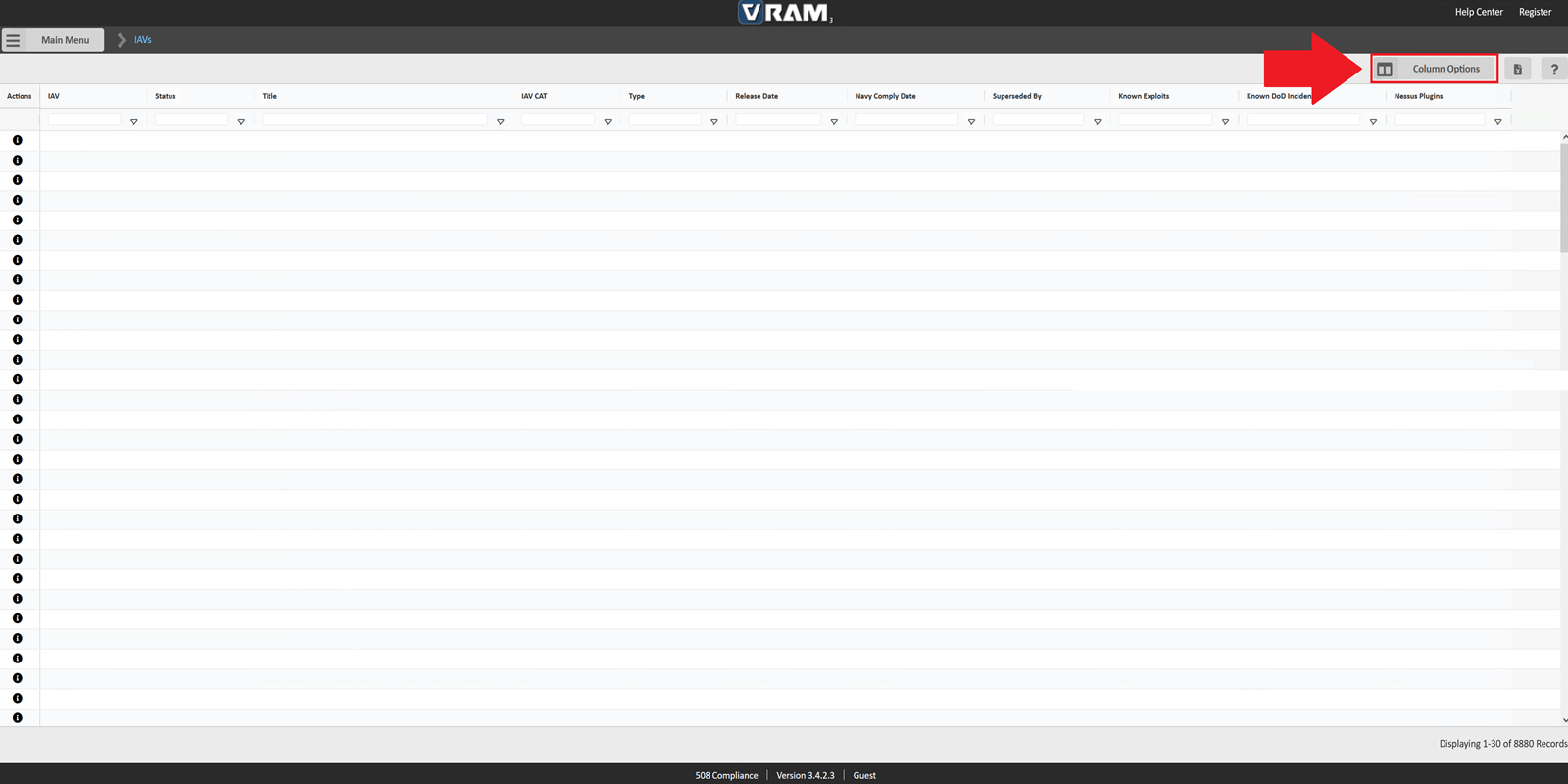
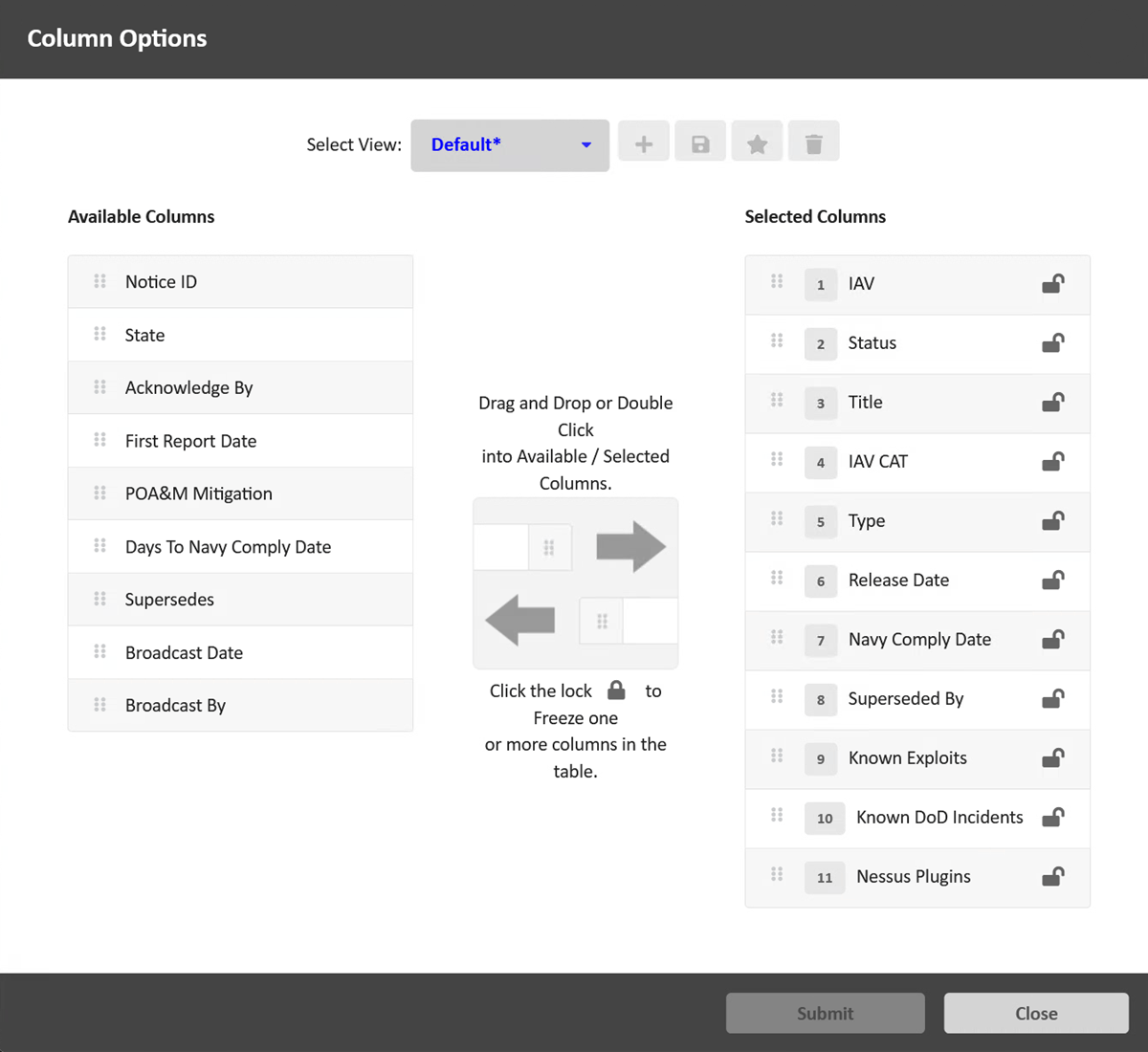
4.1. Column Options
Note
C-PAT is configured to automatically parse the required columns by name, therefore, the default column selections are only a minimum requirement. Additional columns or different column orders in the export are permissible.
At a minimum, the following fields ARE required: IAV Status Title IAV CAT Type Release Date Navy Comply Date Superseded By Known Exploits Known DoD Incidents Nessus Plugins
4.2. Export
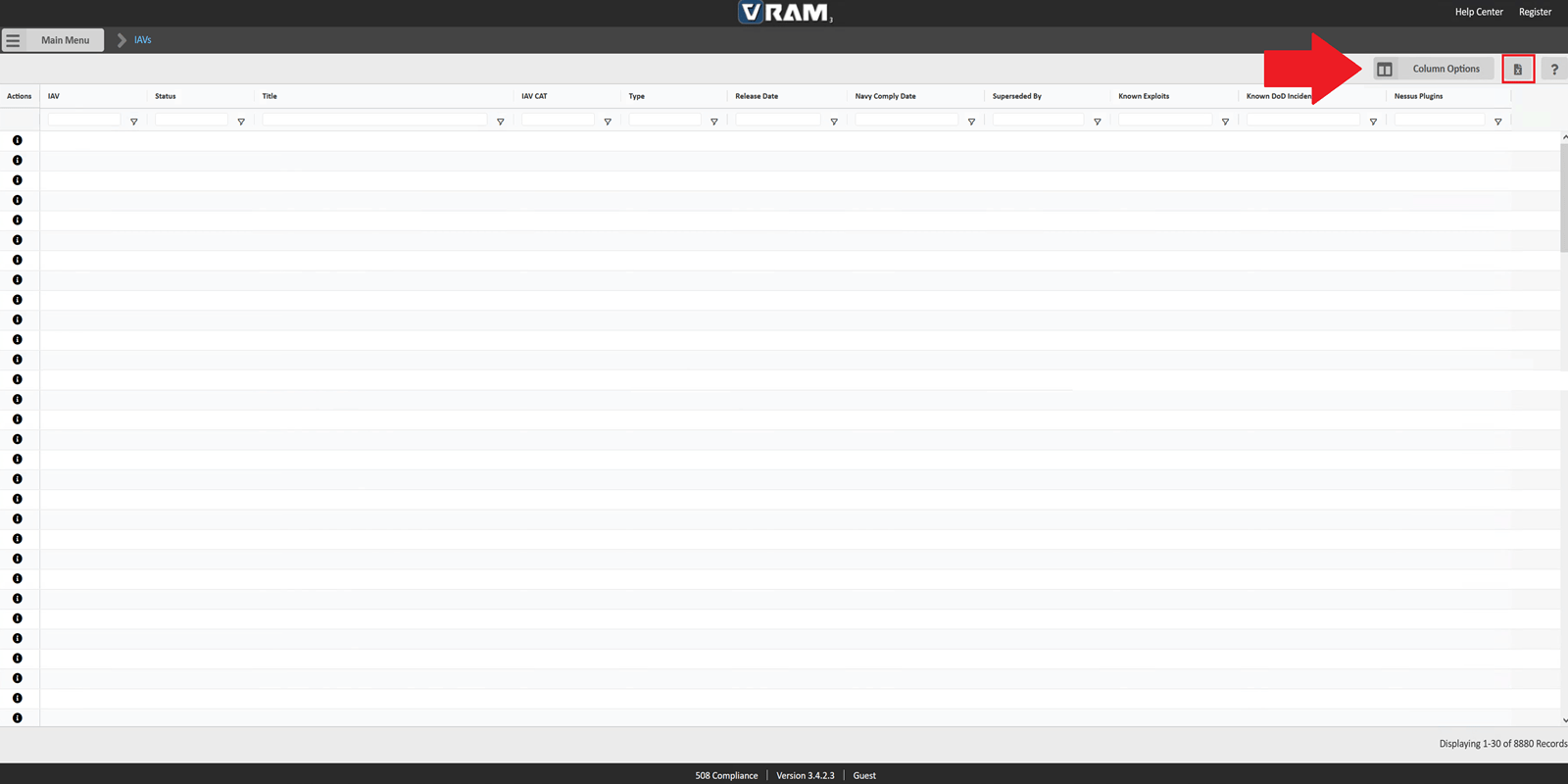
Click to export. The exported file can now be imported to C-PAT.
5. Importing VRAM Data Into C-PAT
The exported VRAM excel document can now be imported into C-PAT by navigating to the “VRAM IAV Import” tab within the admin portal. The import process will automatically parse the required columns and populate the IAV table in C-PAT, allowing the requisite data for plugin mapping and subsequent processing.
Note
After selecting the file to import or dragging and dropping the appropriate file, you MUST click the green import button.
6. Nessus Plugin Mapping
The ‘MAP PLUGINS TO IAV’ button will initiate the process of mapping IAV data to Tenable plugin IDs. This is an intensive operation that queries the Tenable analysis endpoint to return plugins with a cross reference[xref] for IAVs from 1990 to present. IAVA|20*,IAVB|20*,IAVT|20*,IAVA|199*,IAVB|199*,IAVT|199*
Note
This process will take approximately 60 seconds to complete. Clicking away from the page will terminate the mapping and the process must be started over again.
6.1. Task Order Assignment
Each row in the IAV table contains an editable Task Order field. To assign or update a task order, click the edit icon in the table actions column, enter the task order value, and click the green check to save. Clearing the field and saving removes the task order from the IAV.
Assigned task orders determine which Plugin ID’s are displayed when the IAV Task Orders source is selected within the Tenable Task Orders component.
Note
Task orders are entered and maintained exclusively within C-PAT and are preserved when VRAM data is re-imported.
7. Asset Deltas
The Asset Deltas component is designed to handle two types of imports.
An excel (.xls, .xlsx, .xlsm) or CSV (.csv) document containing a key:value pair of Assets and Team Names. This import routine was designed with the intent of importing an Active Directory .csv export where Asset Names are exported to Column A and OU is exported to Column B, however, exporting from Active Directory is not a requirement. Row 1 is reserved for the column headers and should not contain any data.
An eMASS Hardware List excel export.
The import process will automatically parse the document and populate the Asset Deltas table with the provided data. The table can be sorted by any column by clicking on the respective column header. The table can also be filtered by entering text into the search bar located above the table or through clicking the filter icon located next to any column name. This component contains functionality to query Tenable and STIG Manager using the provided asset names and determine if the asset exists within the respective service. After a successful query runs, the Tenable and STIG Manager column will be populated with icons (Green Checkmark or Red X) and the charts will update to depict asset existence and Team breakdown. Any subsequent column filtering will also update the “Total Assets” count located above the chart. Exporting of this table is also available for further analysis or record keeping. Asset existence will be exported as True or False.
Note
The importing of Assets enables functionality to automatically assign a Team to a POAM if a match is found to an asset within the imported asset list. This feature is enabled by populating the AD Team field after selecting a team within the Assigned Teams component.
8. A&A Packages
C-PAT provides the ability for administrators to set A&A package options for their organization. In addition to populating the list of options when setting an A&A package for a particular collection, the A&A packages entered in the Set A&A Packages component will populate a drop down list of options in POAMs for instances when a POAM entry may require deviation from the pre-populated A&A Package.
Note
Any A&A Package containing “Zone: D”, “Zone D”, “Zone: C”, or “Zone C” will result in a change of the default Tenable Vulnerability table filter of Vulnerability Last Observed “Within 30 Days” to “Within 90 Days”
9. Assigned Teams
The Set Assigned Teams component allows administrators to create a team structure that fits their organization. Teams can be assigned collections of responsibility, referred to as the team’s collection coverage. Subsequently, when assigning user permissions, a team can be selected with an appropriate access level for a user. In essence, a user will be given access to each collection the team covers at the access level selected without having to manually assign each individual collection. This structure allows for a more granular approach to permissions and access control within C-PAT. In addition to Team Name and Team Permissions, assigned teams also contain an AD Team field. The AD Team field is used to establish a link between a C-PAT team and a team name as provided in the AD Team list. This correlation allows for automatic team assignments to POAMs if an affected asset name matches with an AD row entry.
A team’s collection coverage is managed with the Team Permissions picklist in the team dialog. When editing an existing team, moving a collection between the Available Collections and Assigned Collections lists immediately opens a dialog previewing the effect on the team’s current members — nothing is changed until that dialog is confirmed. For a newly created team there are no members to preview, so the selected collections are applied when the team is saved.
9.1. Adding Collection Coverage
Adding a collection to a team’s coverage grants that collection to anyone assigned to the team later. For the team’s current members, the Add Collection Coverage dialog lists each member who would receive access now, showing the change to their permission (e.g. no access → Submitter, or Viewer → Approver). Members who already hold sufficient access from another source are listed separately as unchanged. By default all eligible members are checked; unchecking a member skips them so the coverage is added without granting them the collection.
Note
A skipped member remains skipped — saving their team assignment again will not grant the collection. To give it back later, use the restore action on the user’s team row in User Management (see Restoring Skipped Collections), or remove the coverage and add it again.
9.2. Removing Collection Coverage
Removing a collection from a team’s coverage stops the team from granting that collection to anyone added later. For permissions the team’s current members already received, the Remove Collection Coverage dialog previews the effect on each member before anything is changed: whose access would be removed entirely, whose would be lowered to the level another source still justifies, and who is unaffected because another team or a direct grant still fully justifies their access. The dialog then offers two ways to proceed:
Remove but keep access: Removes the coverage and converts the access each member received from it into a direct grant, so it stays with them through future team changes.
Remove and revoke: Removes the coverage and applies the previewed removals and downgrades.
Note
When multiple collections are removed in a single save, the keep-or-revoke choice applies to all of them. To decide differently for each collection, remove them one at a time.
9.3. Deleting a Team
Deleting a team removes the team and every membership in it, but no member loses access: each member keeps the collection permissions the team granted them, converted into direct grants so they survive the team going away. Removing that access afterwards must be done per user on the Collection Permissions tab in User Management.
10. App Configuration
The app configuration component allows administrators to set application-wide options that will be applied to all users and collections within C-PAT. This includes setting basline parameters for the application, such as the maximum scheduled completion time for each severity level.